


Docusign - Upload & Sign Docs
4.827.88K Reviews
App Specs
- Version
- 3.63.1
- Updated On
- License
- Free
- Downloads
- 10,000,000+
- Developer
- Docusign
- Categories
- Productivity
- Platform
- Android, iOS
Screenshots

 Analysis by AppCompare
I judge a signing app by a practical question: can I get a real document from “needs attention” to “ready for the other person” without reaching for a printer? That is where DocuSign - Upload & Sign Docs is most appealing. It is a productivity app from Docusign, aimed at people who need to fill out, sign, and send paperwork from a phone. I would choose it for occasional contracts, approvals, and forms—not because every document belongs on a mobile screen, but because some simply cannot wait until I’m back at a desk.
There is a meaningful difference between signing your own form and preparing a document for someone else. In the first case, you mostly need to add your signature and return the file. In the second, you also need to place the right fields, make the signing sequence clear, and avoid sending a confusing or incomplete document. I find it useful to decide which job I actually have before opening the app; that helps set realistic expectations about how much work a phone can comfortably handle.
Getting Started with DocuSign
First things first, diving into DocuSign - Upload & Sign Docs is a breeze. Whether you’re an Android or iOS user, the app is readily available for download. Once you’ve got it installed, you’ll be greeted with a clean and intuitive interface. Navigating through the app is as smooth as butter, with all the options laid out in a user-friendly manner. No need to be tech-savvy here; anyone can get the hang of it in no time.
That approachable start matters most when a form arrives unexpectedly: I don’t want to spend the first few minutes learning a complicated process just to add one signature. The app is free to download, and its broad reach—more than 10 million installs—makes it a familiar option for many people who regularly exchange signed paperwork. It has a 4.5 average rating from around 156,000 ratings, but popularity is not the same thing as a perfect fit. I would still choose based on how often I sign, whether I need to send documents for others to complete, and how carefully I need to inspect the file.
Uploading and Preparing Documents
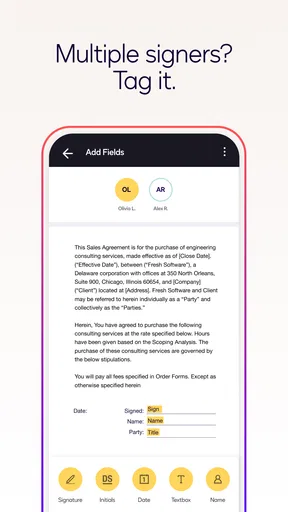
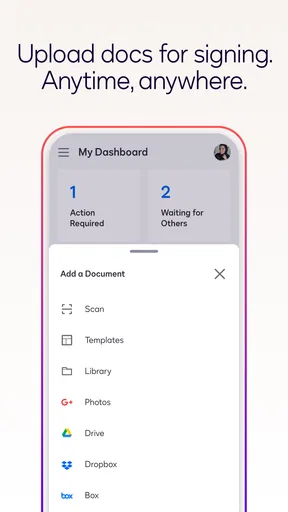
When it comes to uploading documents, DocuSign makes it ridiculously easy. You can pull docs from practically anywhere—your phone’s storage, cloud services like Google Drive or Dropbox, or even directly from your email. Once uploaded, prepping your document for signing is straightforward. The app provides a host of tools to add signature fields, initials, and even text boxes if you need to fill out additional information. It’s like having a virtual office assistant right at your fingertips!
My most useful preparation habit is to check the whole document before I place any fields, rather than jumping straight to the signature line. A form can have a date, initials, or a blank that needs an answer elsewhere on the page, and missing one can send the paperwork back for correction. On a phone, zooming in to verify a field’s position is especially worthwhile when the page is dense. If the document has several pages or instructions that refer to each other, I prefer to review it first and then add fields in a deliberate pass.
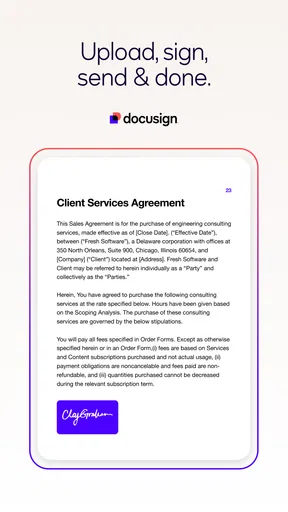
A realistic example is a school or club form sent while I’m away from home. I can open the attachment, fill in the details I’m responsible for, sign, and send it back without waiting to use a computer. For a document that needs another person’s signature too, I would take a moment to make the next person’s task obvious: place their signing fields where they belong and check that nothing intended for me is left blank. That small review is more valuable than rushing through the final tap.
Worth Reading Before You Choose

EA SPORTS FC Mobile 26 Is a Bigger Football Game, but It Takes Time

Flipboard Shows What News Apps Must Do Beyond the Feed

Switching to Android Auto Means Rethinking Your Driving Routine

Google Calendar Makes a Crowded Week Easier to Manage

Ludo King Makes the Most of the Minutes Between Plans

Baby Panda World Brings Quick Play to Modern Phones, but Its Game Library Feels Busy
Signing and Sending
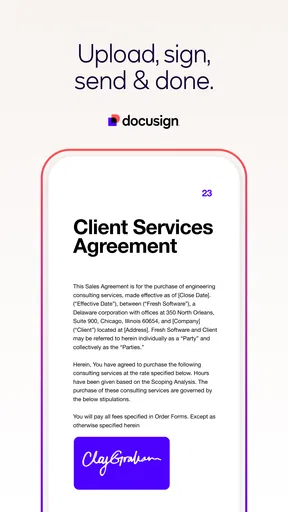
Signing documents has never been more hassle-free. You can draw your signature using your finger, upload a pre-saved image if you’re picky about how your John Hancock looks, or even select a pre-generated signature style. Once your masterpiece is ready, sending it off is just a few taps away. The app supports sending documents via email, making the process seamless and efficient. Plus, you get a nifty confirmation once the recipient has signed, keeping you in the loop at all times.
For a one-off form, drawing or choosing a prepared signature style keeps the process simple. For paperwork I expect to sign repeatedly, I would settle on a consistent signature method so the result looks familiar from one document to the next. I also treat the send screen as a final proofreading checkpoint: confirm the recipient’s address, make sure the document is the intended version, and check that the message explains what needs to happen. These checks take little time and can prevent the avoidable back-and-forth that makes a supposedly quick signature slow.
One question people often have is whether the app is only useful when they are the signer. It is also intended for sending documents out for others to sign, which makes it more relevant to freelancers, small teams, and anyone coordinating a simple agreement. Still, a complicated multi-party contract deserves a careful desktop review if the phone view makes it hard to track clauses, names, or field placement. Convenience is valuable, but it should not replace understanding what you are agreeing to.
Security Features
Now, I know what you’re thinking—how secure is this? Rest assured, DocuSign takes security seriously. The app employs top-notch encryption standards to ensure your documents are safe from prying eyes. Additionally, it offers multi-factor authentication, adding an extra layer of protection to ensure only the intended parties can access your documents. So, you can sleep easy knowing your sensitive information is in good hands.
With paperwork, security is not only a matter of the signing tool; it also depends on the file and the person receiving it. I would avoid sending a sensitive document to an address I have not checked, and I would use an appropriate authentication step when the situation calls for it. A signature workflow can help organize an exchange, but it does not tell me whether a contract is fair or whether I should sign it. For high-stakes legal or financial paperwork, I still read the terms carefully and seek qualified advice when needed.
Integration and Compatibility
DocuSign doesn’t just stop at being a standalone app; its integration capabilities are truly impressive. It works seamlessly with a variety of third-party apps, including CRM platforms like Salesforce. This makes it a versatile tool for businesses of all sizes. Whether you’re a freelancer or part of a large corporation, DocuSign fits right into your workflow, enhancing productivity and efficiency.
The best alternative depends on what “signing” means in your routine. If you only need to add a mark to a personal PDF once in a while, a basic document editor or PDF app may feel lighter, especially if you already use one to read and annotate files. If you send agreements to clients or colleagues and need a more recognizable signature workflow, DocuSign is a more natural fit. I would compare options by asking who must complete the document, how often I repeat the process, and whether the app needs to fit into a work system rather than handle a single file.
There is also a trade-off between doing everything on a phone and moving to a computer. Mobile signing is excellent when time or location is the obstacle; it is less comfortable when I need to compare long sections, inspect small print, or make extensive edits. I would use the phone to handle a clear, familiar form and switch to a larger screen when reviewing the substance matters more than speed. That is not a weakness unique to this app so much as a sensible limit of working with contracts on a small display.
Why I Love DocuSign
If it isn’t obvious already, I’m a huge fan of this app. The convenience it brings is unparalleled, turning what used to be a cumbersome process into a quick and painless task. It’s ideal for anyone who needs to handle documents on the go, and its robust features make it a standout in the digital signature arena. Plus, it’s an absolute lifesaver when you’re working remotely or need to send out contracts in a jiffy.
That said, I would not recommend it to someone who only wants to make occasional handwritten notes on PDFs, or to someone who rarely signs anything and already has a document tool that meets that need. A dedicated signing app earns its place when the exchange itself matters: sending a form to another person, keeping the process organized, or finishing paperwork away from a printer. The app is rated for Everyone, and its current version is 3.57.0, but the practical question is whether those signing tasks show up often enough in your own life to justify adding another app to your routine.
Cost is worth checking before you build a regular workflow around it. The app is free to install, while in-app purchases range from $9.99 to $479.99 per item. That broad range makes it important to look at the plan or purchase details shown in the app and decide whether the features you need justify the expense. I would start with the occasional document, learn the steps, and only consider paying if I repeatedly hit a limit that affects real work. For a person signing a form now and then, paying for capabilities they will not use makes little sense.
Switching from another method has a small but real cost: you need to get comfortable uploading files, positioning fields, and checking the finished document before sending. If you have been printing, signing, and scanning, the time saved can make that adjustment worthwhile. If your current PDF app already handles your documents cleanly and you do not need to involve another signer, changing tools may add steps rather than remove them. I would try one low-stakes form first, then decide whether the workflow feels easier enough to keep.
DocuSign was released on January 11, 2012, and is now on version 3.57.0; its minimum operating system requirement is 9. Those details are useful when checking whether an older device can run it, while the everyday test is simpler: can I open the kind of document I receive, complete it accurately, and send it without confusion? I would not choose a signing app from its age or version number alone. I would test the actual files and steps that make up my routine.
So, if you haven’t tried DocuSign - Upload & Sign Docs yet, what are you waiting for? It’s time to say goodbye to the old-school way of signing documents and embrace the future. You can thank me later!
My recommendation is more measured than “use it for everything”: I’d pick it when I regularly need to sign or circulate documents while away from a desk, and I’d keep a PDF editor or desktop workflow for detailed reading and editing. Before sending anything important, I would verify the pages, fields, recipient, and final copy. Used that way, it is a practical bridge between receiving paperwork and getting it completed—not a substitute for reviewing the agreement itself.
Pros
- User-friendly interface for quick navigation.
- Supports multiple document formats.
- Secure encryption for data protection.
- Integrates seamlessly with cloud services.
- Efficient in-app notifications for updates.
Cons
- Limited features in free version.
- Requires internet for most functions.
- Occasional lag with large files.
- Subscription can be pricey.
- Customization options are limited.
FAQs for Docusign - Upload & Sign Docs
What is DocuSign, and how does it work?
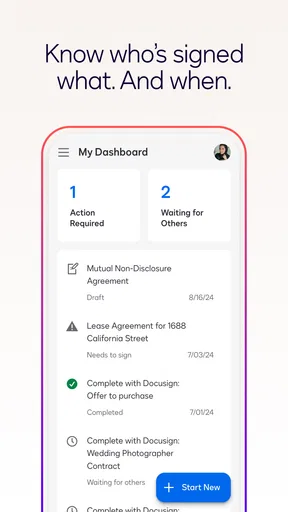
DocuSign is a digital transaction management app that allows users to upload, sign, and manage documents electronically. It works by enabling users to send documents for e-signature, track their status, and store them securely. The app offers a simple, user-friendly interface to ensure ease of use for both senders and recipients.
Is DocuSign secure for handling sensitive documents?
Yes, DocuSign is designed with security in mind, utilizing robust encryption methods and adhering to industry-standard security protocols. It complies with various international e-signature laws and regulations, ensuring that your documents are legally binding and protected against unauthorized access.
Can I use DocuSign on both Android and iOS devices?
Absolutely. DocuSign is available for both Android and iOS platforms, providing a seamless experience across devices. The app is optimized for mobile use, allowing you to upload, sign, and manage documents on-the-go, ensuring flexibility and convenience for all users.
Are there any costs associated with using DocuSign?
DocuSign offers different pricing plans to cater to various needs, including a free trial for new users. While basic features might be accessible at no cost, advanced functionalities, such as unlimited document sending or additional security features, may require a subscription. It's best to review their pricing options to choose a plan that suits your requirements.
What types of documents can I sign with DocuSign?
DocuSign supports a wide range of document formats, including PDFs, Word documents, Excel spreadsheets, and more. You can upload virtually any type of document that requires a signature, making it versatile for personal, business, and legal use. This flexibility ensures you can manage all your document signing needs within one platform.


